An employee suggestion system is the order that moves corporate innovation from an idea in the organization into a numbered record.
In an online suggestion system each idea becomes a numbered file. A suggestion, a kaizen software record, a near-miss notice, and a success story open from the same platform.
Process and governance steps, training notes, and consulting rationale stay on the file. An approved contribution posts to the point balance.
PlatformSuggestion, kaizen, HSE, and success records sit in one portal; forms and lists share the same layout.
Training and ConsultingUnits get guidance at go-live and in use so record discipline holds on the floor.
Process and GovernanceReview steps, roles, and decision notes follow the organization’s procedure.
Corporate InnovationSmall ideas land on the file; approved work is measured and kept as a lesson learned.
Ideas and SuggestionsAn idea in the organization lands as a numbered record.
ImprovementKaizen and continuous improvement share the same order.
CampaignsSeasonal calls and participation gather on the same engine.
ContestsReward and point rules tie to the contest period.
BrainstormingCollected ideas stay on the file with discussion and steps.
InnovationCorporate innovation is recorded, measured, and summarized at close.
Ideas and SuggestionsAn idea in the organization lands as a numbered record.
ImprovementKaizen and continuous improvement share the same order.
CampaignsSeasonal calls and participation gather on the same engine.
ContestsReward and point rules tie to the contest period.
BrainstormingCollected ideas stay on the file with discussion and steps.
InnovationCorporate innovation is recorded, measured, and summarized at close.
Work Areas
Platform Modules
Ideas and suggestions, improvement, and innovation areas on one platform. The form opens by area; number, step, decision, and points stay shared.
Suggestion
A Numbered Record Instead of a Box
It takes a workplace idea onto one form. The financial return field connects to the economy step.
Title, summary, current state, and expected benefit share one form.
Record content, attachments, and process notes are kept together in one file.
ReferenceThe record number, opening date, and module sit at the top of the file.
Author and UnitThe author, co-authors, company, site, and unit are written on the record.
NarrativeSummary, current state, and the proposed change share one form.
Expected BenefitThe result is written. A suggestion record also has a field for the financial return.
AttachmentsPhotos and documents stay on the record. Review reads the same file.
DiscussionComments, questions, and stars stay on the file until the record closes.
HistoryWho wrote what at which step stays on the timeline.
PointsApproval and closing points land on the balance. A reward request draws from that balance.
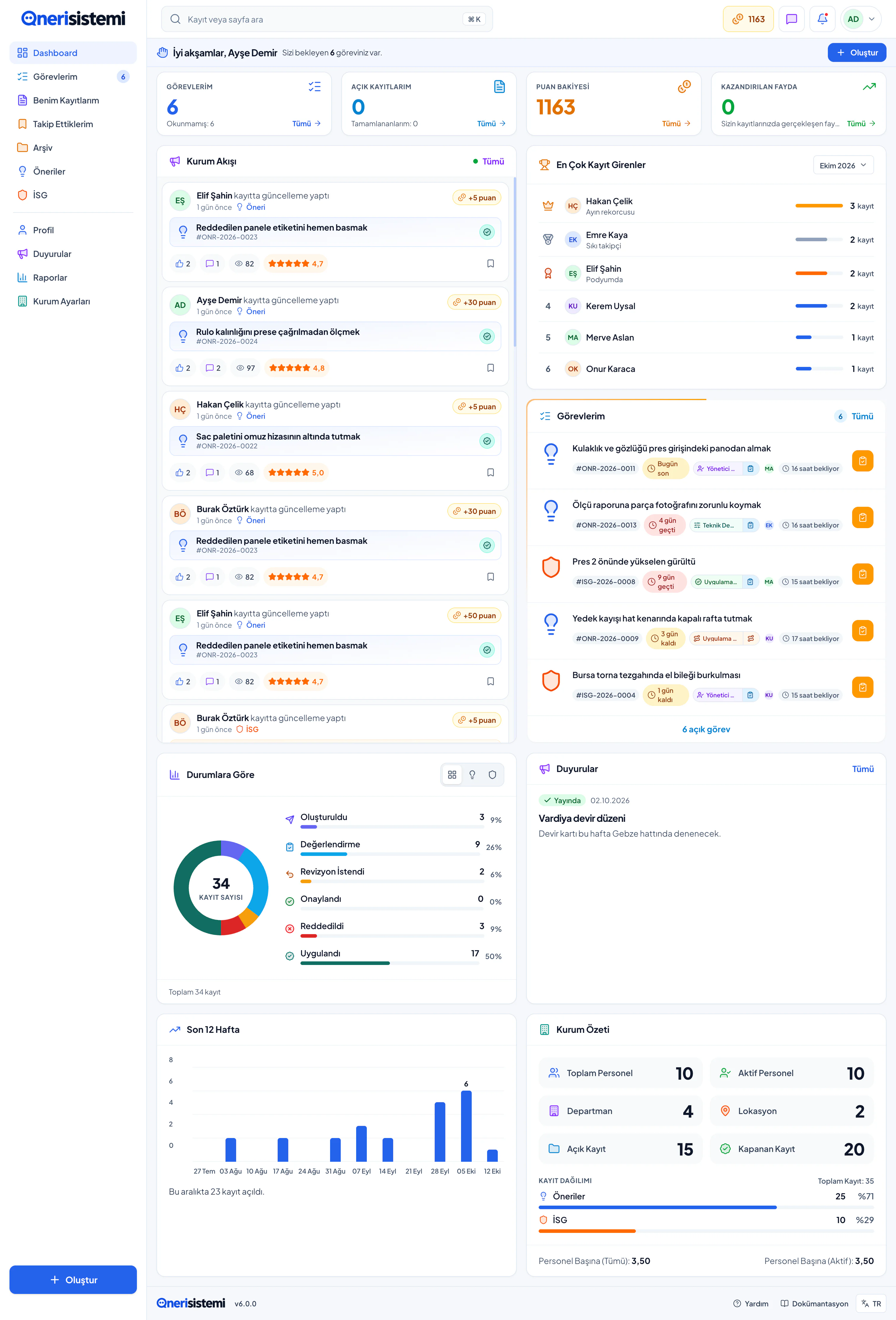
Suggestion System organization portal dashboard: tasks, feed, points, and summary cards.
Review
Review Processes
A suggestion record passes seven stops. Each stop writes accept, revision, or reject.
01
Record Opening
The employee writes the title, summary, and unit. A reference number is created and the record enters the review queue.
02
Pre-Review
The evaluator separates scope, missing information, and duplicate records. A suitable record moves to technical review.
03
Technical Review
The technical owner writes feasibility and the expected benefit. A suitable record goes to administrator approval.
04
Administrator Approval
The administrator checks priority and budget fit. Approval moves the record to implementation routing.
05
Implementation Routing
Management names the person who will carry out and follow the work. The record goes to economy approval.
06
Economy Approval
Human resources writes the estimated amount and the reason for the return. Implementation follow-up starts.
07
Implementation Follow-up
The actual result is written. The record closes. Points and the rationale stay on the file.
Three Outcomes at Every Step
Accept
The record moves to the next step. The task appears on the next owner's list.
Revision
A note is required. The author corrects the text and sends it again. The record waits on the same step.
Reject
A reason is chosen from the list or written as a note. The record closes. The author can read the reason.
Who Does What
Role-Specific Permissions & Screens
The menu follows the role and the open areas. Each role sees its own queue and its own decision.
Employee
An employee opens their own suggestion, kaizen record, or near-miss notice. A draft has no number; once sent, the file receives one. The revision note, the decision reason, and the closing result are read on the same record. Another unit’s queue does not open for this role.
Own Record
Fills the form, leaves a draft, or sends it. The sent file receives a number and stays on their own list.
Status
Which step is waiting, and with whom, is read from the list. Approval, rejection, and close sit in the same file’s history.
Revision
Makes the requested change on the same file and sends it again. A new record is not opened.
Evaluator
The evaluator opens the file that landed on pre-review or the technical step. Acceptance moves the record on, revision returns it to the author, and rejection closes it. A reason is required for revision and rejection; it stays on the file and the author can read it.
Queue
Only records that landed on their step stay on the list. Another evaluator’s file does not open.
Decision
Acceptance moves the record to the next step. Revision returns it to the author. Rejection closes the record.
Reason
The note and the chosen rejection reason stay on the timeline. The author reads the reason on their own file.
Unit Manager
The unit manager opens the record that reached technical review. Feasibility and the expected benefit are written on this step. Approval leaves the record for administrator approval. Another step’s queue does not sit on this screen.
Technical Queue
Only files on the technical step are visible. The previous step’s note stays at the top of the record.
Feasibility
The decision note is written on the record. Administrator approval reads that note from the same file.
Handoff
Acceptance moves the record to administrator approval. Revision returns it to the author. Rejection closes it and the reason stays visible to the author.
Human Resources
Human resources follows economy approval, the point balance, and reward requests from the same screen. Approval and closing points land on the balance. Opening a reward request holds the points; approval confirms the spend, rejection refunds them.
Balance
Approval and closing points collect on the person’s balance. Points are not kept in a separate table.
Reward Request
A request cannot exceed the balance. Opening holds the points; approval confirms the spend, rejection refunds them.
Economy Note
The return and cost note stays on the file. It is not collected from a separate file at period end.
Implementation Owner
The implementation owner carries the work on a record routed to them. At close they write what was done and the result that actually happened. The closing points land on the balance in this step, and the file closes.
Owner
The implementation owner of the record is chosen on this step. The work lands on that person’s list.
Result
The work done and the benefit that happened are written in the closing note. The note stays in the file’s history.
Points
Closing points land on the balance. The file closes; the author sees the result on the same record.
The sensor threshold resets at the start of the shift. The proposed setting reduces downtime.
The scope fits this step
No open record on the same topic
The benefit measure is on the file
Approve
Request Revision
Reject
Waiting for Approval
3
ONR-1842
Line sensor setting
Maintenance · Administrator Approval
Open
KZN-221
Simpler maintenance plan
Production · Administrator Approval
Open
ONR-1790
Supplier form
Purchasing · Administrator Approval
Open
Current Balance
Points
410
Point Movements
Suggestion approval+10
Implementation points+50
Reward request−150
Implementation Follow-up
ONR-1842
Close Record
Comparison
One Portal Instead of Spreadsheets and Mail
The gap between a scattered method and one record shows at every step.
Topic
Scattered Method
Suggestion System
Record Tracking
Suggestions spread across email and shared spreadsheets.
All record types open from one portal.
Review
Review rationale reaches the author late or is lost.
Approval, rejection, and revision reasons stay on the history.
Record Types
Near miss and kaizen run in separate notebooks.
Platform modules share the same review discipline.
Tracking
Participation and close time are collected at period end.
Status lists and dashboard totals are readable at once.
Revision
The revision note disappears in email.
The revision note stays on the record; the author corrects and sends the same file.
Points
The points table is kept apart from the record.
Approval points land on the balance; a reward request draws from that balance.
Attachment and Photo
The photo stays in an email attachment and leaves the file.
The photo and the document stay attached to the record.
Waiting Owner
Who should look is lost in the message thread.
Which step is waiting, and with whom, is read from the list.
Search
The record is hunted by file name or in the inbox.
Filter by number, module, status, and unit.
Co-Author
The person who contributed stays inside a note.
The co-author is written on the record.
Lesson Learned
The summary of closed work scatters across separate files.
The summary is read on the success story.
Reward Request
The request runs apart from the points table.
The request draws from the balance; the decision is written on the record.
Notice
The decision is passed on in a free-form email.
The mail after a decision goes out in the organization’s own wording.
Audit
Who decided, and when, cannot be found later.
The step note and the decision stay on the timeline.
Closed Module
An unused form stays in circulation.
A closed module does not appear in the menu.
Risk
A near miss is passed on verbally or on paper.
The risk score and the notice type stay on the record.
How You Go Live
Options for the Request
The same portal runs in the cloud or on a company server; address, updates, and data location follow that choice.
Cloud Service
People sign in through a browser on an address set aside for the organization. Maintenance, backup, and version updates run on the service side. The portal screens do not change with the setup.
Sign-in happens on an address set aside for the organization.
Updates and backups stay on the service side.
The marketing site and the portal open in the same install.
Records stay on the company server. People sign in directly on an internal address. If wanted, only the portal opens and the marketing site stays closed.
Data does not leave the company server.
Sign-in is direct, on an internal address.
Only the portal can open, with the marketing site closed.
Data Separation
Each organization’s records are kept apart; authorized users see only their own organization.
Module Choice
Which record types are active is an organization setting; unused modules do not appear in the menu.
Record History
Review notes and step changes stay on the timeline for audit and feedback.
Fit the Process to Your Workplace Without Code
Steps, decision forms, roles, and mail change from administration. Existing records stay intact.
Workflow
Steps are added, ordered, and bound to a decision form.
Roles and Permissions
Who sees a record and who writes the decision is read from one table.
Mail Template
The mail after a decision goes out in the organization’s own wording.
Catalog
Benefit types and the hazard list arrive ready; the organization picks from the list.
Change Log
Who changed a setting, and when, stays on file.
API Key
A key for your own systems is opened from administration.
onerisistemi.com/admin/workflows
People
Processes
Access
Mail
Reward
Process Editor
Draft
1
Pre-Review
Unit Manager
Active
2
Technical Review
Technical Team
Active
3
Administrator Approval
Management
Active
4
Implementation and Close
Process Owner
Active
Decision Form Linked
Mail Template Linked
Evaluator Role
Publish
Capabilities
System Features
The record, the review, the notice, the reward, and the report live in one portal.
Record Entry
Suggestion, kaizen, near miss, and success story open from the same door. A draft has no number; once sent, the file receives a number, a unit, and an author.
Review Management
Each step writes acceptance, revision, or rejection. The reason stays on the file, and the record lands on the next owner’s list.
Action Management
Approved work is routed to the implementation owner. At close, the work done and the actual result are written on the same record.
AI Support
The author is reminded of a similar record and a missing field. The reviewer sees a repeated topic before opening the file.
Smart Notices
Task, decision, and revision notices follow the role. A step that does not concern the person does not open on their list.
In-Platform Communication
Comments, questions, and noted handoffs stay on the record. Chat and the notice flow do not scatter; the reason sits in the file history.
Reward Wizard
The point rule is set by step and module. Approval and closing points land on the balance; the rule changes from administration.
Reward Store
The catalog shows the point price and the quantity left. Opening a request holds the points; rejection refunds them.
Similarity Detection
An open record on the same topic is shown while a new file is opened. The reviewer separates the repeat and links it to the existing file.
Smart Archive
A closed file stays in the archive with its number, module, and result. The lesson learned is read from the success story.
Deadline Tracking
How long a step has been waiting is read from the list. A task past its time rises on the owner’s queue.
Document Management
Photos and documents stay attached to the record. Review does not scatter into email attachments; the file opens from the same record.
RBAC Foundation
The menu follows the role and the open areas. Who sees a record and who writes the decision is read from one table.
KVKK Compliance
Each organization’s records are kept apart. An unauthorized user does not see another organization’s file.
WCAG Compliance
Screens are used with a keyboard and a reader. Focus, color, and target size follow the same order on the work screen.
Points, Discussion, and Comments
Comments, questions, and stars stay on the file. The average is read on the record page; the discussion runs until close.
Advanced Search and Filtering
Filter by number, module, status, unit, and the person waiting. The record is not hunted by file name or in the inbox.
Reports and Statistics
Status, module, and participation are read on a chart. The period list, close time, and point total come from the same report.
Customization
Steps, decision forms, roles, the catalog, and mail wording change without code. An existing record is not broken by that change.
Audit
Who changed what, and when, stays on the record history. The decision, the points, and a setting change are read from the same trail.
Announcement
The organization announcement lands on the panel. The person who can publish manages the text. An announcement does not replace the record.
About the Suggestion System
Common Questions
Which record types does Suggestion System cover?
Suggestion, kaizen, near miss, and success story run in one portal. Near miss is a record type inside HSE. The lesson learned sits in the success story text. Form fields differ by area; review steps are shared.
What is the difference between cloud and company server?
Portal capabilities match. The difference is access address, data location, and whether marketing pages are public.
Can review steps be changed?
Step names follow your procedure. Each step leaves rationale on the record.
How do reward points work?
Approved contributions earn points. Staff request items from the reward catalog; rules sit in administration.
How is the demo reviewed?
The live demo link opens the sample organization. Use the contact form for an organization-specific demo.
Can an unused module be turned off?
Which record types are open is an organization setting. Unused modules do not appear in the menu.